
Study methods
Turn lectures into notes you can study from
Explore Cornell notes, active recall, spaced repetition, and the Feynman technique. Learn how to put them into practice using lecture recordings and notes from Husho on your Mac.
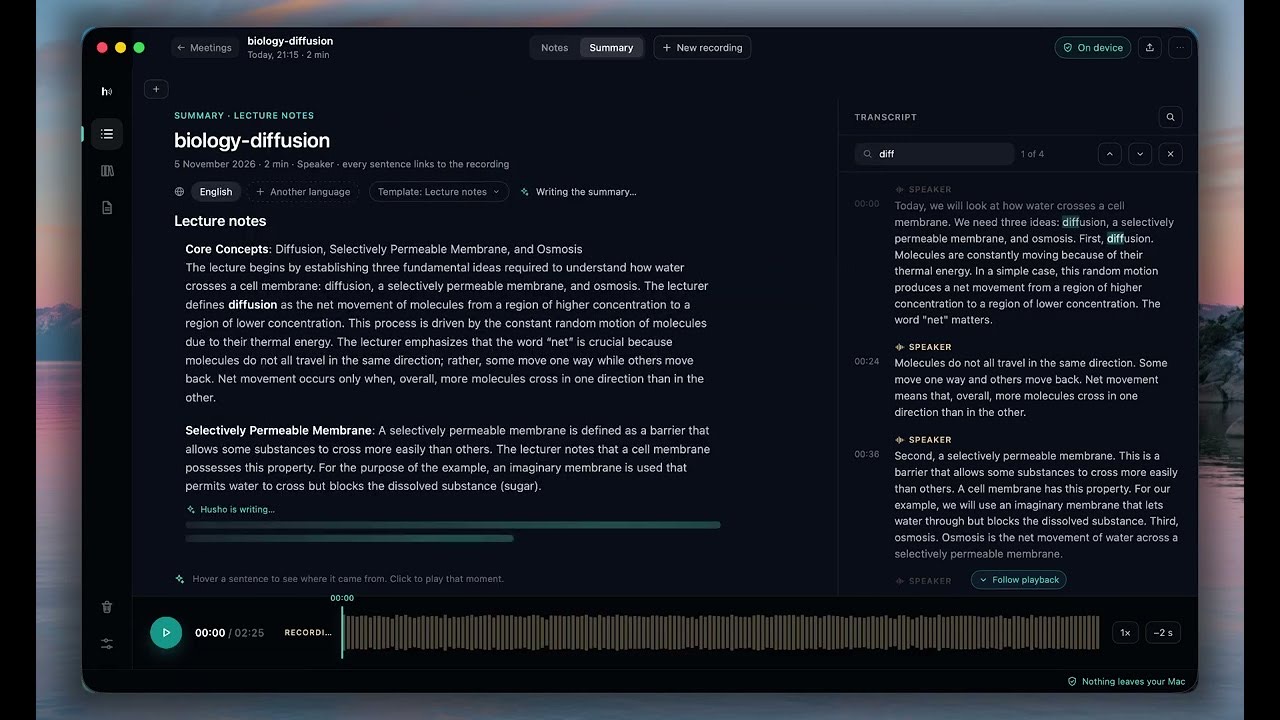
The video plays from YouTube.
Good notes are just the beginning
It's hard to listen, follow a lecture, and take detailed notes all at once. Husho records the lecture and creates a live transcript, so you can focus on listening and jot down a few keywords if you want to. Afterwards, use the recording and transcript to prepare notes, questions, or flashcards.
How it works
Keyword note-taking
Keyword note-taking means jotting down key concepts and questions during a lecture rather than trying to capture every sentence. It helps you focus on what the lecturer is saying and fill in the details later.
How to use it
- Write down key concepts, questions, and anything the lecturer emphasizes.
- Mark anything you don't understand with a question mark.
- Review your keywords soon after the lecture, while the context is still fresh.
How Husho helps
Jot down a short prompt, such as “def. price elasticity?”. Husho adds relevant details from the lecture and links your note to the right part of the recording. On Macs with 16 GB RAM, it can enhance notes during the lecture. On Macs with 8 GB RAM, it does so afterwards.
In Husho: Husho notes
How it works
Cornell notes
The Cornell note-taking method divides the page into three sections: a narrow column for questions, a wider area for notes, and a summary section at the bottom. Developed by Walter Pauk at Cornell University, it encourages you to test your understanding by covering your notes and answering questions from memory.
How to use it
- Take notes in the wider section during the lecture.
- Afterwards, write questions in the narrow column based on your notes.
- Summarize the lecture in a few sentences at the bottom of the page.
- When studying, cover your notes and answer the questions from memory.
How Husho helps
After the lecture, choose the “Cornell notes” template. Husho uses the transcript and your keywords to organize each topic into questions and supporting notes, then adds a short summary. Links to the recording help you check the original explanation.
In Husho: Cornell notes template
How it works
Active recall
Active recall means retrieving information from memory rather than repeatedly rereading your notes. You can practice it by answering questions or explaining concepts without checking the answers first.
How to use it
- Turn the key points in your notes into questions.
- Answer them from memory, aloud or in writing.
- Check your answers and revisit the ones you found difficult.
How Husho helps
The “Flashcards” template turns lecture material into questions with short answers. You can also use the questions in Cornell notes. If you're unsure about an answer, search the transcript and replay the lecturer's explanation.
In Husho: Flashcards and Cornell notes templates, transcript search
How it works
Spaced repetition
Spaced repetition involves reviewing material at planned intervals, usually increasing the time between reviews as you remember it better. Rather than cramming before an exam, you revisit what you've learned over time.
How to use it
- Create flashcards after each lecture.
- Use a flashcard app such as Anki to schedule reviews.
- Keep adding cards and reviewing older material throughout the semester.
How Husho helps
Husho doesn't schedule reviews. Its “Flashcards” template helps turn lectures into questions and answers. You can then use your preferred flashcard app to plan when to review them.
In Husho: Flashcards template
How it works
Topic-based notes
Topic-based notes organize lecture material into sections, with definitions, examples, and key takeaways under each topic. They make it easier to revisit specific concepts when preparing for an exam.
How to use it
- Break the lecture into topics and give each one a short heading.
- Add definitions, examples, and exceptions under each heading.
- Keep a separate list of anything the lecturer highlights as important for the exam.
How Husho helps
The “Lecture notes” template organizes the lecture by topic, including definitions and examples. It also highlights information about exams, assignments, and recommended reading. You can translate the notes into one of eight languages.
In Husho: Lecture notes template
Useful with any study method
- Search the transcript for a term and replay the relevant section at 1×, 1.25×, 1.5×, or 2× speed.
- Import a lecture recording you've already made and turn it into notes just as you would with a new recording.
- Export your notes and summary as a Markdown file.
Frequently asked questions
Can Husho replace studying?
No. Husho helps you create notes and questions from lectures, but you still need to recall information and review what you find difficult. It saves you time copying notes and searching through recordings.
Can I record lectures?
Recording policies vary by institution and lecturer. Check the rules and get any required permission before you record. You're responsible for making sure your recording complies with applicable rules and laws.
What Mac do I need?
Husho requires an Apple silicon Mac (M1 or later), macOS 14.4 or later, and at least 8 GB RAM. On Macs with 16 GB RAM, Husho can enhance notes during a lecture; on Macs with 8 GB RAM, it does so afterwards.
Does Husho upload my recordings to the cloud?
No. Recordings, transcripts, notes, and summaries are processed locally on your Mac. Husho uses the internet to download AI models and templates, and to check your license and updates.
How much does Husho cost for students?
You can try Husho for 30 days without signing up or entering payment details. After that, a student license costs €37 as a one-time purchase, with no subscription. It includes 12 months of updates.
What languages does Husho support?
Husho transcribes speech in 10 languages, including English and Polish. You can translate summaries into one of eight languages.
Try Husho with your next lecture
Keep your recordings and notes on your Mac. Get started without creating an account or entering payment details.
Download